Guide: getting started
Step by step, with screenshots: sign up with a promo code, buy places, install, and connect to your computer for the first time. One place = one computer you control. The computer or phone you connect from needs no place.
1Sign up on the site with a promo code
- Click Sign in at the top → the Sign up tab.
- Enter your email and a password (8 characters or more), then repeat the password.
- Type the promo code you were given into Promo code (optional). It gives a lasting 7% discount on every payment, and whoever gave you the code gets 10% cashback from each of your payments.
- Click Create account.
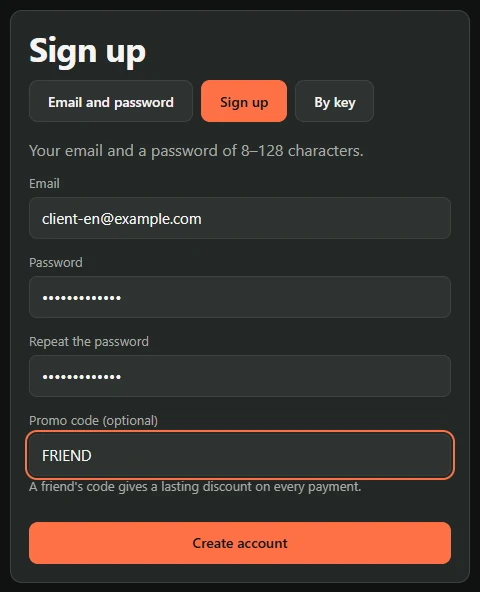
Forgot the promo code? Cabinet → Promo code and cashback → A friend's promo code. It can be done once and only before the first payment. Your own code for friends is there too: you get 10% cashback from each of their payments.
2Buy places
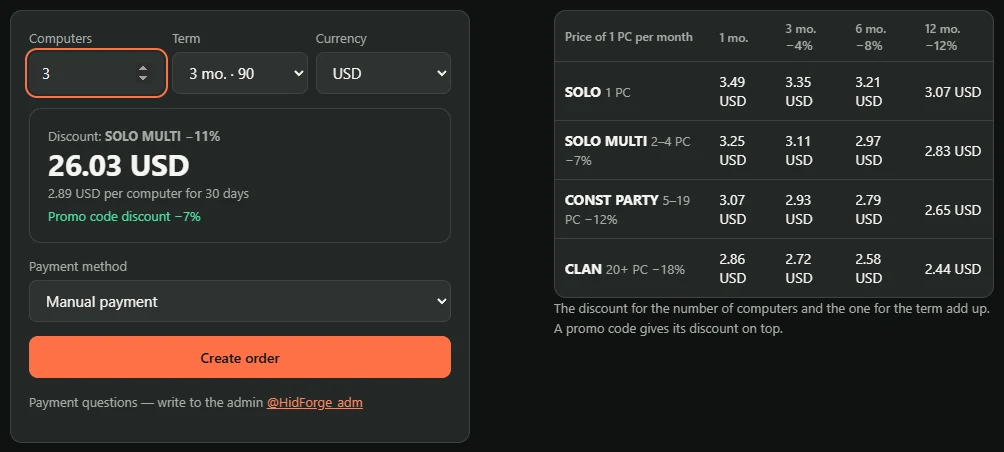
- Cabinet → Buy or renew places.
- Choose how many computers, the term and the currency. The price with every discount shows at once: for the number (2–4 PCs −7%, 5–19 PCs −12%, 20+ PCs −18%), for the term (3 mo. −4%, 6 mo. −8%, 12 mo. −12%) and another −7% for the promo code.
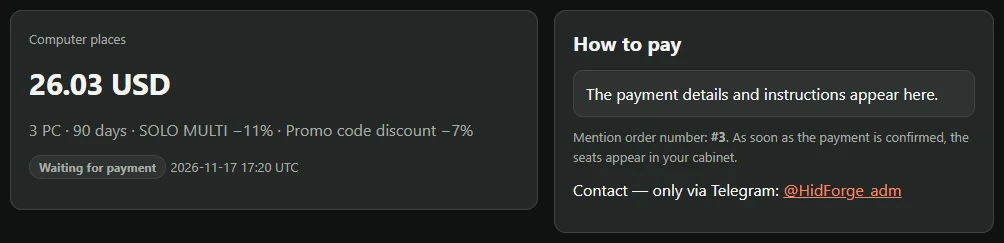
- Choose a payment method → Create order and pay as the order page says, with the order number. To pay in Telegram, choose the payment method “⭐ Telegram Stars”: the price shows in Stars and the invoice comes to the @hidforge_bot chat at once (link Telegram in the cabinet first).
- As soon as the payment is confirmed, the places appear in the cabinet.
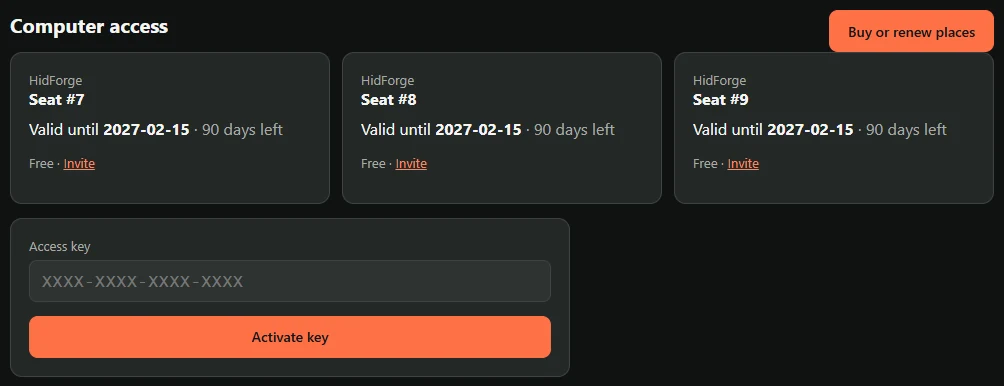
Bought a key on FunPay or GGSel? Open the link from the key, enter your email and a password, and the key is activated in one step. Or: Cabinet → Access key → Activate key. Renewing works the same way: a new purchase extends the places that end first.
3Install HidForge on the computer you will control
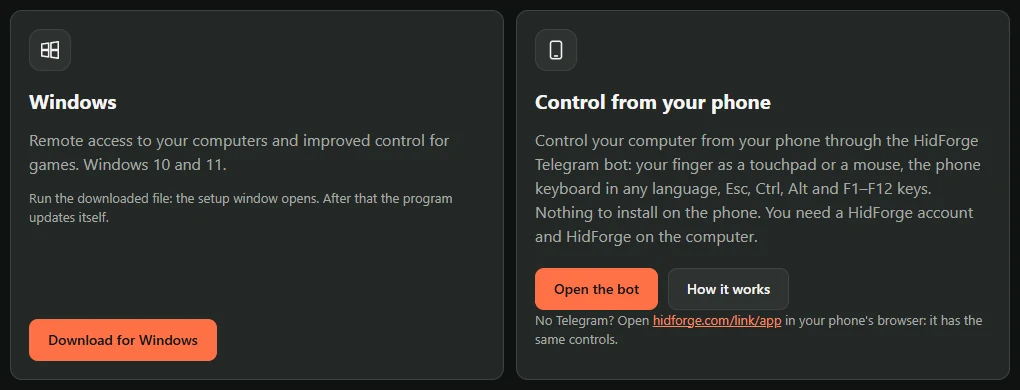
- The Download page → Download for Windows, then run the downloaded file.
- If Windows shows “Windows protected your PC” (unknown publisher), check the file first: it is from hidforge.com and its SHA-256 matches the one on the Download page. Only then — More info → Run anyway. If it differs, do not run it: delete the file and contact support.
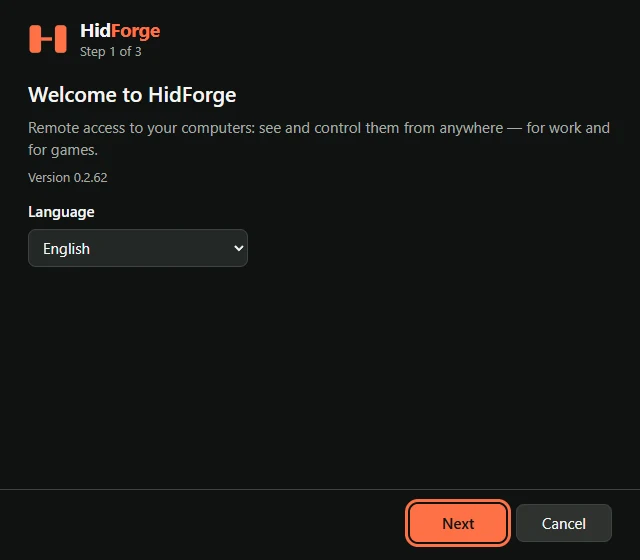
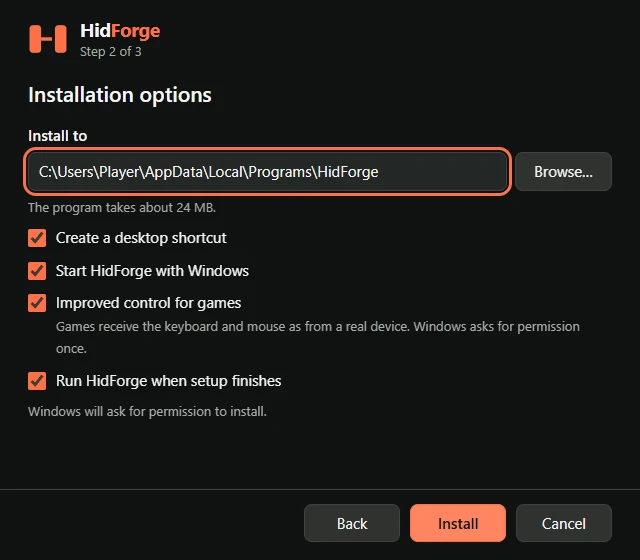
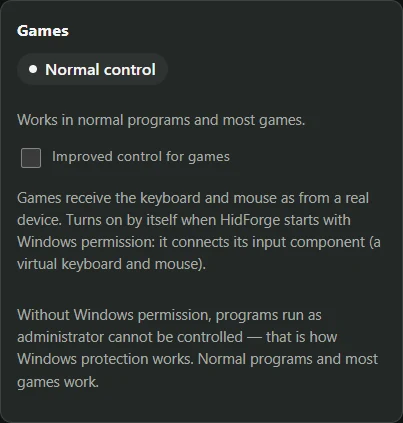
- In the setup window: Next → keep the boxes checked, especially Improved control for games → Install. Windows asks for permission once — agree.
4Sign in to the program
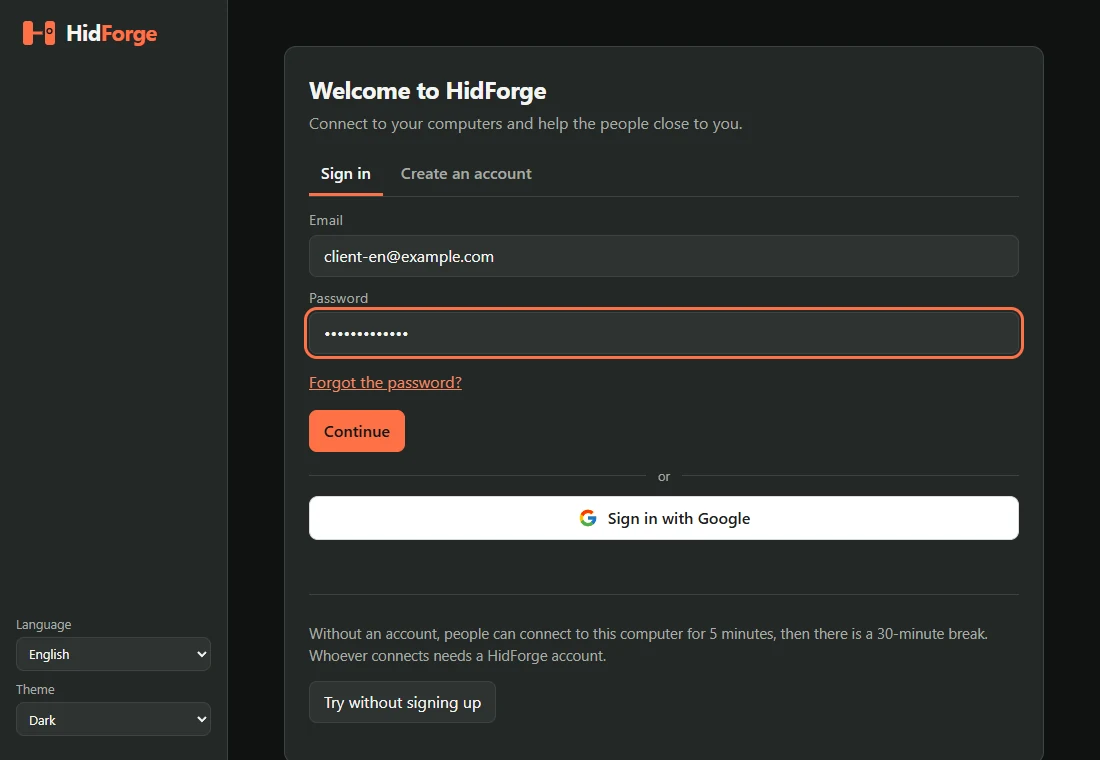
- In the HidForge window, the Sign in tab: the same email and password as on the site → Continue.
- If the account has a free place, the computer takes it by itself and gets a permanent ID. It starts with Windows so it is always reachable (you can turn that off in Settings).
- Repeat this on every computer you will control: one place each.
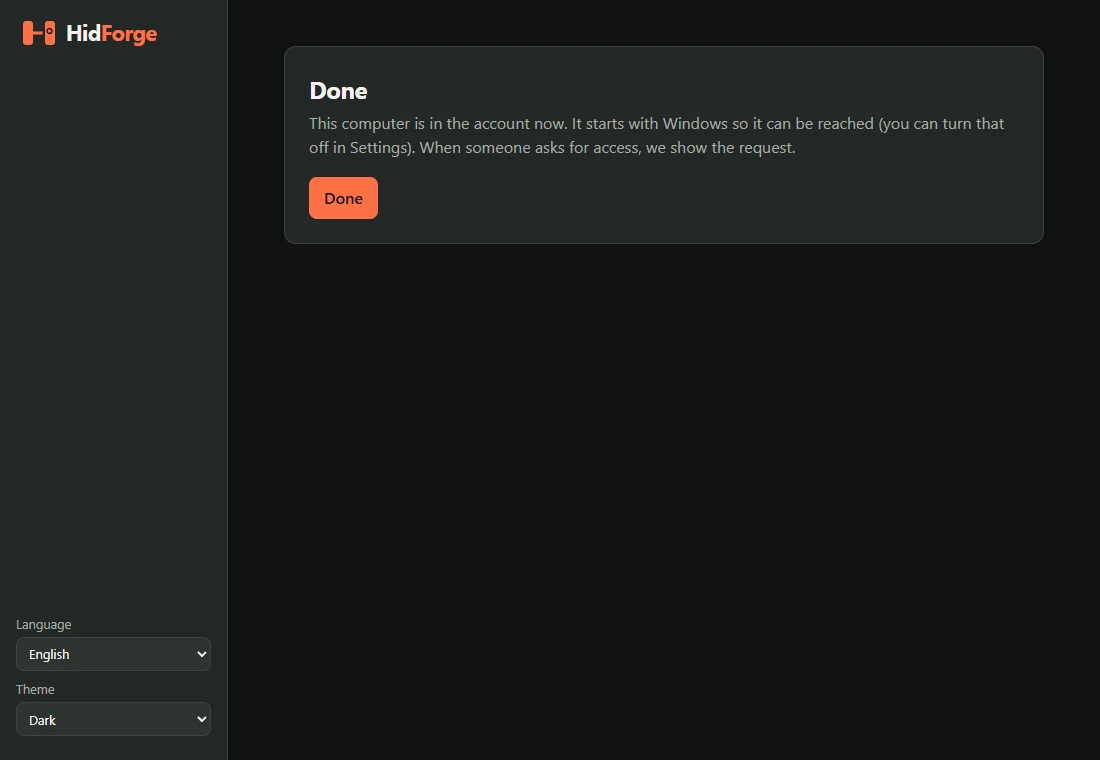
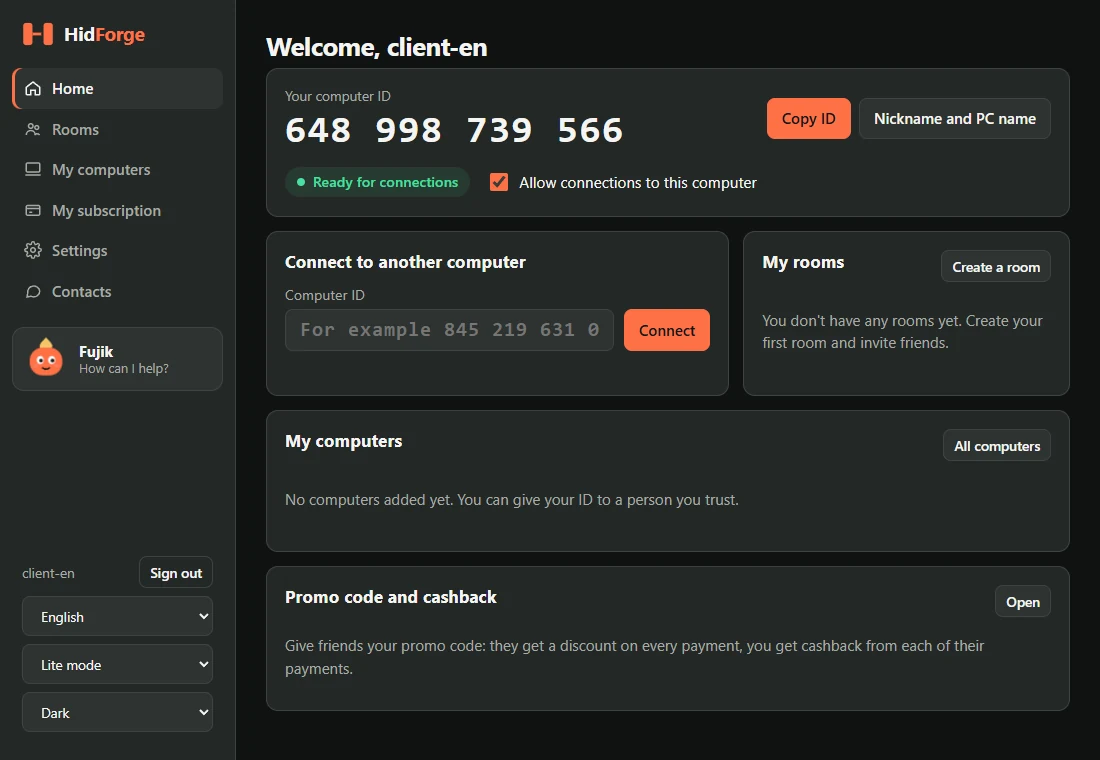
The program says “There is no free place in the account…”? Buy more places (step 2), or enter a FunPay key or a friend's invitation code right there: the computer is added by itself.
5Connect to your computer
- From another PC: just sign in on the site. Or install HidForge: if there is no free place, choose Only connect (it takes no place). From a phone: the Telegram bot @hidforge_bot, nothing to install.
- My computers → Connect next to the computer. Or the Connect section → enter the ID.
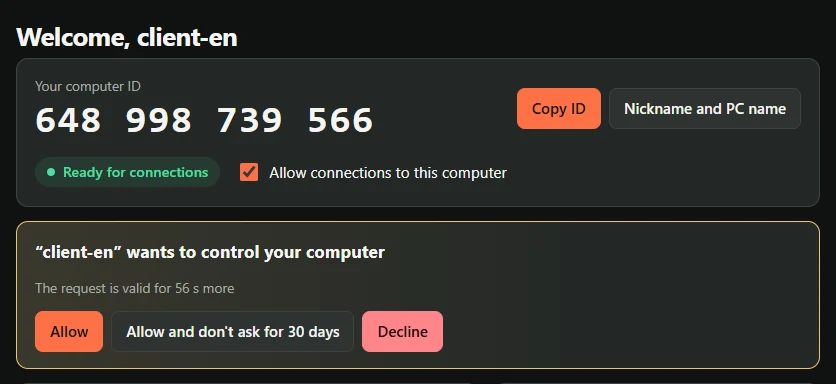
- That computer shows a request: Allow, Allow and don't ask for 30 days or Decline. If you allowed yourself to connect without a confirmation, there is no request.
6For games — improved control
The program installs updates by itself when you close it, and never restarts by itself.
7Share places with your group
- Invitation code shows a code (works 7 days). Send it to the person: they sign up for HidForge and paste the code into My subscription → the key field.
- Invite by email: enter the person's email. If an account with it exists, the place shows in it at once; if not, as soon as they sign up with that email. We send them a letter.
Only a free place can be given away. If a computer is on it, unlink it in My computers first.
If something does not work, see Getting started or write to us, ideally with a screenshot.
What this guide covers
This is the full path for a new HidForge user, with a screenshot for each step: signing up, buying places, installing the program on the computer you will control, binding that computer to your account, the first remote connection, improved control for games and sharing places with a group.
If you only want to try it
You do not need an account or a payment to test HidForge. Download the program and use the demo: 5 minutes of connection, then a 30-minute break. Common problems are answered in the quick guide.